
0


Discover All New Features:
It’s Windows® like you’ve never seen it before, all thanks to two truly unique technologies built into TuneUp Utilities™ 2012.
Our revamped Program Deactivator restores over 50% of speed and free space on bogged-down PCs, while TuneUp Economy Mode improves battery life by up to 30% and is nothing short of an energy-saving miracle.
And now it’s easier than ever to optimize your PC thanks to our fully redesigned Start Center.
-TuneUp Economy Mode
-TuneUp Program Deactivator
Improve Performance and Battery Life:
Massive performance loss and unbearable slowdowns don’t just occur on ancient Windows® XP machines. As a matter of fact, they oftentimes hit even the fastest Windows® 7 laptops and desktops around. But not anymore!
TuneUp Utilities™ 2012 takes your PC to the next performance level, guaranteeing lightning-fast application load times and extended battery life that can endure even the longest trips.
-TuneUp Program Deactivator
-TuneUp Economy Mode
-Turbo Mode
-TuneUp Live Optimization
-Disable startup programs
-Accelerate system startup and shutdown
-Defragment hard disk
Take Care of Your PC and Data Clutter:
The perfect PC cleanup in less than 5 minutes? Now it’s easier than ever thanks to TuneUp Utilities™ 2012 which removes thousands of megabytes of Windows® clutter while refreshing your registry and deleting massive disk space hogs. The all-in-one maintenance of TuneUp Utilities™ 2012 makes sure your PC becomes cleaner and faster than ever before.
-1-Click-Maintenance & Automatic Maintenance
-Clean hard disk
-Uninstall unneeded programs
-Defragment, Clean and Edit the Registry
-Find and Delete Large Amounts of Data
-Remove Broken Shortcuts
Restore and Secure-Wipe Files:
Keeping your data private and secure is crucial. TuneUp Utilities™ top three tools enable you to restore accidentally deleted files, clean out data traces from your hard disk, and securely wipe sensitive files in order to prevent them from falling into the wrong hands.
-Restore deleted files
-Clean hard disk
-Delete files safely
Analyze and troubleshoot your PC:
Tired of calling up PC experts or costly tech hotlines? Then help yourself with TuneUp Utilities™. Its easy-to-use wizards and diagnostic tools help you find vulnerabilities, errors, and your PC’s untapped performance potential. With TuneUp Utilities™ you’ll get rid of the most annoying Windows® problems of all time with just a few clicks and push your PC to perform better than ever.
-Show system information
-Status & recommendations (category)
-Optimization status
-Increase performance – recommendations
-Program rating
-Display and close running processes
-Detect and fix problems
-Check hard disk for errors
Personalize Windows®:
Bored with the same Windows® themes, logon screens or icons? Ready to give your PC a makeover? TuneUp Utilities™ 2012 offers unique customization possibilities that’ll transform the same old and boring Windows® XP “Luna” and Windows® 7 “Aero” design to something new, sleek, and exciting. And once you’re done with that, TuneUp System Control helps you adjust more than 400 hidden Windows® and program settings.
-Customize the appearance of Windows® (TuneUp Styler)
-Customize options and behaviors (TuneUp System Control)
More Great Features:
With its elegant and powerful Start Center interface, TuneUp Utilities™ guides users through all their optimization steps and helps them solve issues with their PC, Windows®, or 3rd party software. Thanks to our brand new Settings Center, you’ll also have instant access to the most important settings and update features of TuneUp Utilities™ 2012. And once you’re done, the Optimization Report provides you with a complete history of problems solved, tuning steps performed, and data clutter removed.
-Start Center
-Overview of all functions
-TuneUp Utilities Settings Center
-TuneUp Utilities Settings Center
-Check for Updates
-Optimization Report
How To Use:
1)Install “Glary Utilities Pro”.
2)Click On “Glary Utilities Pro Serials”.
3)Choose A ‘UserName’ & ‘Serial’.
4)Register “Glary Utilities Pro”.
5)Enjoy!!!.
 Read More
Download TuneUp Utilities 12.0 (2012) Full Free Mediafire
Download TuneUp Utilities 12.0 (2012) Full Free Mediafire
Download TuneUp Utilities 12.0 (2012) Full Free Mediafire
Uncompromising performance, maximum battery life, a clutter-free PC experience and smart energy efficiency – that‘s exactly what you get with an all-new TuneUp Utilities™ 2012. Packed full with more than 30 tools, we guaranteed that your PC is in top shape!
screen shots:
screen shots:
Discover All New Features:
It’s Windows® like you’ve never seen it before, all thanks to two truly unique technologies built into TuneUp Utilities™ 2012.
Our revamped Program Deactivator restores over 50% of speed and free space on bogged-down PCs, while TuneUp Economy Mode improves battery life by up to 30% and is nothing short of an energy-saving miracle.
And now it’s easier than ever to optimize your PC thanks to our fully redesigned Start Center.
-TuneUp Economy Mode
-TuneUp Program Deactivator
Improve Performance and Battery Life:
Massive performance loss and unbearable slowdowns don’t just occur on ancient Windows® XP machines. As a matter of fact, they oftentimes hit even the fastest Windows® 7 laptops and desktops around. But not anymore!
TuneUp Utilities™ 2012 takes your PC to the next performance level, guaranteeing lightning-fast application load times and extended battery life that can endure even the longest trips.
-TuneUp Program Deactivator
-TuneUp Economy Mode
-Turbo Mode
-TuneUp Live Optimization
-Disable startup programs
-Accelerate system startup and shutdown
-Defragment hard disk
Take Care of Your PC and Data Clutter:
The perfect PC cleanup in less than 5 minutes? Now it’s easier than ever thanks to TuneUp Utilities™ 2012 which removes thousands of megabytes of Windows® clutter while refreshing your registry and deleting massive disk space hogs. The all-in-one maintenance of TuneUp Utilities™ 2012 makes sure your PC becomes cleaner and faster than ever before.
-1-Click-Maintenance & Automatic Maintenance
-Clean hard disk
-Uninstall unneeded programs
-Defragment, Clean and Edit the Registry
-Find and Delete Large Amounts of Data
-Remove Broken Shortcuts
Restore and Secure-Wipe Files:
Keeping your data private and secure is crucial. TuneUp Utilities™ top three tools enable you to restore accidentally deleted files, clean out data traces from your hard disk, and securely wipe sensitive files in order to prevent them from falling into the wrong hands.
-Restore deleted files
-Clean hard disk
-Delete files safely
Analyze and troubleshoot your PC:
Tired of calling up PC experts or costly tech hotlines? Then help yourself with TuneUp Utilities™. Its easy-to-use wizards and diagnostic tools help you find vulnerabilities, errors, and your PC’s untapped performance potential. With TuneUp Utilities™ you’ll get rid of the most annoying Windows® problems of all time with just a few clicks and push your PC to perform better than ever.
-Show system information
-Status & recommendations (category)
-Optimization status
-Increase performance – recommendations
-Program rating
-Display and close running processes
-Detect and fix problems
-Check hard disk for errors
Personalize Windows®:
Bored with the same Windows® themes, logon screens or icons? Ready to give your PC a makeover? TuneUp Utilities™ 2012 offers unique customization possibilities that’ll transform the same old and boring Windows® XP “Luna” and Windows® 7 “Aero” design to something new, sleek, and exciting. And once you’re done with that, TuneUp System Control helps you adjust more than 400 hidden Windows® and program settings.
-Customize the appearance of Windows® (TuneUp Styler)
-Customize options and behaviors (TuneUp System Control)
More Great Features:
With its elegant and powerful Start Center interface, TuneUp Utilities™ guides users through all their optimization steps and helps them solve issues with their PC, Windows®, or 3rd party software. Thanks to our brand new Settings Center, you’ll also have instant access to the most important settings and update features of TuneUp Utilities™ 2012. And once you’re done, the Optimization Report provides you with a complete history of problems solved, tuning steps performed, and data clutter removed.
-Start Center
-Overview of all functions
-TuneUp Utilities Settings Center
-TuneUp Utilities Settings Center
-Check for Updates
-Optimization Report
How To Use:
1)Install “Glary Utilities Pro”.
2)Click On “Glary Utilities Pro Serials”.
3)Choose A ‘UserName’ & ‘Serial’.
4)Register “Glary Utilities Pro”.
5)Enjoy!!!.
Download TuneUp Utilities 12.0 (2012) Full Free Mediafire
 Read More
0

Read More
DOWNLOAD SANDBOXIE TO PROTECT YOUR PC FROM DAMAGE
DOWNLOAD SANDBOXIE TO PROTECT YOUR PC FROM DAMAGE
Sandboxie runs your programs in an isolated space , prevents them from making permanent changes to other programs and data in your computer.with features like Secure Web Browsing,Enhanced Privacy,Secure E-mail,Windows Stays Lean.
DOWNLOAD SANDBOXIE TO PROTECT YOUR PC FROM DAMAGE
main benefits I am gonna list below.check out the great features that you had never experienced before.
- Secure Web Browsing: Running your Web browser under the protection of Sandboxie means that all malicious software downloaded
- Enhanced Privacy: Browsing history, cookies, and cached temporary files collected
- Secure E-mail: Viruses and other malicious software that might be hiding in your email
- Windows Stays Lean: Prevent wear-and-tear in Windows by installing software
Awesome features right?I enjoyed these thats why I downloaded sanboxie and shared it with you.
DOWNLOAD SANDBOXIE TO PROTECT YOUR PC FROM DAMAGE
Now download sandboxie from below link,for more information visit their website sandboxie.com...haha
DOWNLOAD SANDBOXIE
This is the best post that is coming out from this site...hopes google removes out sandbox lock from this site.
Incoming search terms:
- sanboxie download
- protect my computer from malwares
- protect your pc
- best pc protection software
Read More
0

Read More
DOWNLOAD MICROSOFT LATEST ANTIVIRUS SECURITY ESSENTIALS
DOWNLOAD MICROSOFT LATEST ANTIVIRUS SECURITY ESSENTIALS
Now As a no-cost service for genuine Windows PCs, Microsoft Security Essentials offers you comprehensive, state-of-the-art protection against malicious threats such as viruses, Trojans, spyware, and other malware.
DOWNLOAD MICROSOFT LATEST ANTIVIRUS SECURITY ESSENTIALS
Features of Microsoft latest antivirus security essentials.
- real-time protection -notify you when spyware, viruses, or other malicious software install on PC
- System scanning-on-demand scanning options to provide an extra level of confidence
- System cleaning-automates the removal process by taking the recommended action for all items detect
- Windows Firewall integration-Microsoft Security Essentials scans the PC to determine if a firewall is active on the PC
- Live system behavior monitoring-Live system behavior monitoring uses sensors to detect suspicious process
- Dynamic signature service
- Rootkit protection-Rootkits are a particularly difficult type of malware to protect against, and Microsoft Security Essentials
- And more more features
DOWNLOAD MICROSOFT LATEST ANTIVIRUS SECURITY ESSENTIALS
Now download Microsoft latest antivirus security essentials from below.
Now drop your comments below and don't forget to share this.
Incoming search terms:
Incoming search terms:
- Latest antivirus
- microsoft antivirus download
- security essentials download
- free antivirus
Read More
1

DOWNLOAD APPLE CARE REPAIR UTILITY SOFTWARE |APPLE CARE DIAGNOSTIC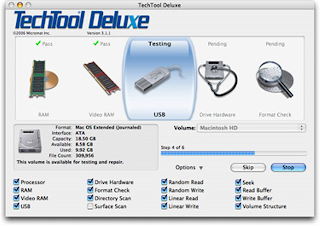
Read More
DOWNLOAD APPLE CARE REPAIR UTILITY SOFTWARE | APPLE CARE DIAGNOSTIC
DOWNLOAD APPLE CARE REPAIR UTILITY SOFTWARE | APPLE CARE DIAGNOSTIC
TechTool Deluxe is based on Micromat's powerful TechTool Pro diagnostic and repair utility.TechTool Deluxe checks the major computer components covered under the AppleCare Protection Plan.

DOWNLOAD APPLE CARE REPAIR UTILITY SOFTWARE |APPLE CARE DIAGNOSTIC
TechTool Deluxe offers these features:
- Repairs Directories by Rebuilding
- Volume Repair Preview Report
- Bad Block Detection on Drives
- Checks the Drive Mechanism
- Checks USB Functionality
- Checks Memory
- Checks Video RAM
- Checks CPU
NOTE: Version 3.1.3 requires Mac OS X 10.4 or greater.
SCREEN SHOTS TECH TOOL DELUX

DOWNLOAD APPLE CARE REPAIR UTILITY SOFTWARE|APPLE CARE DIAGNOSTIC
TechTool Deluxe for Mac download now
Hope you enjoyed this utility now you can comment below
Incoming search terms:
Incoming search terms:
- TechTool Deluxe for Mac download
- apple care utility software download
- apple care
- repair apple
Read More
0
20 TIPS FROM GUDTRICKS TO MAKE YOUR COMPUTER FASTER AND STABLE
16. Start Up Programs: Windows can be slowed down when programs run on start up. To eliminate this, check your Start up folder. You can access it from the start menu: Start, Programs, Start Up. Another way to eliminate programs from loading even before Windows actually starts is by doing the following: Click on Start, then Run. Type msconfig. It will take quite a long time for this program to load, but when you finally see it on your screen, explore the different tabs. They all have to do with how quickly your PC boots, so select what you want, and uncheck what you don't want!
17. Fonts: When Windows starts, it loads every single font in the Fonts folder. Therefore, the more fonts you have, the slower the booting process. To get rid of unwanted fonts, simply go to the Fonts folder under c:windows and remove whatever you don't want. Fonts that have a red letter 'A' as their icon are system fonts, so don't delete them.
18. Stretching Wallpapers: Don't "stretch" your wallpaper in Windows 98 since it actually slows Windows down when you drag icons around on the desktop.
19. RAM Matters: If you have less than 32MB then you should seriously think of upgrading it to at least 64MB. Windows runs much more smoothly with 64MB or higher and tends to use less hard disk space for virtual memory.
20. Partitioning: A very nice little thing you can do to boost system performance. By partitioning your hard drive, splitting one physical drive into several logical ones, you can gain several advantages. 1. If you get a virus or you accidentally format a drive, not all will be lost. 2. By placing the swap file (Win386.swp) on a separate drive, The swap file will be less fragmented and thus, faster. 3. Place Windows on a separate drive and whenever you need to reinstall it, you rest assured that your data is safe on a separate drive. Partitioning can be done using a few programs such as FDisk which comes with DOS. However, FDisk formats everything on the hard disk before partitioning. Alternatively, you can use Partition Magic from Power Quest to partition your hard disk without losing your data.
Read More
20 TIPS FROM GUDTRICKS TO MAKE YOUR COMPUTER FASTER AND STABLE
20 TIPS FROM GUDTRICKS TO MAKE YOUR COMPUTER FASTER AND STABLE
Follow these tips and you will definitely have a much faster and more reliable PC!


1. Wallpapers:They slow your whole system down, so if you're willing to compromise, have a basic plain one instead!
2. Drivers: Update your hardware drivers as frequently as possible. New drivers tend to increase system speed especially in the case of graphics cards, their drivers are updated by the manufacturer very frequently!
3. Minimizing: If you want to use several programs at the same time then minimize those you are not using. This helps reduce the overload on RAM.
4. Boot Faster: The 'starting Windows 98/XP' message on startup can delay your booting for a couple of seconds. To get rid of this message go to c: and find the file Msdos.sys. Remove the Read-Only option. Next, open it in Notepad or any other text editor. Finally, go to the text 'Options' within the file and make the following changes: Add BootDelay=0. To make your booting even faster, set add Logo=0 to remove the Windows logo at startup.
5. Restart only Windows: When restarting your PC, hold down Shift to only restart Windows rather than the whole system which will only take a fraction of the time.
6. Turn Off Animations: Go to Display Settings from the Control Panel and switch to the Effects Tab. Now turn off Show Windows Content While Dragging and Smooth Edges on Screen Fonts. This tip is also helpful with Windows XP because of the various fade/scroll effects.
7. Faster Start-Menu Access: Go to the Start menu and select Run. Now type Regedit and hit Enter. The Registry Editor will appear on the screen. Now, open the folder HKEY_CURRENT_USERControl PanelDesktop. You should see a MenuShowDelay value. If you don't then do the following: right click on a blank space in the right pane and select New String. Change the name in the new value to MenuShowDelay. Now that we have the MenuShowDelay value, double click on it and enter 0 in the value data field. This sets the start menu delay to 0 milliseconds.
8. Resolutions: If you are willing to do anything for faster performance from your PC, then try lowering your display resolution. The lower it is, the faster your PC.
9. Turn off Active Desktop: Go to your Display Properties and switch to the Web tab. Uncheck View My Active Desktop As a Web Page. Since the Active Desktop option under Windows 98 uses a lot of system resources, this option can have a dramatic effect on the speed of the whole system.
10. Defragment Often: Windows 98's Defrag tool uses Application Acceleration from Intel which means that when you defragment your drive, data is physically arranged on the drive so that applications will load faster
11. Take your PC to Bed: Using the Advanced Power Management feature under Windows 98 gives you the option to use the sleep command. That way, you can send your PC to sleep instead of shutting it down and then restarting it. It's as simple as pressing a button and then pressing the same button to wake it up. You can tell Windows after how many minutes/hours of inactivity to automatically sleep the machine in the Advanced Power Management section of the Control Panel.
12. Faster Internet Access: If you use the internet for reference and the sites you visit are rarely updated then try the following. In IE (the same can be done in Netscape) go to Tools, Internet Options. Next, click on Settings... in the Temporary Internet Files section. Finally, select Never for the first option and double the amount of storage space to use, click OK!
13. Benchmarking: Benchmarking can be very useful when run frequently. It can tell you how your PC's components are performing and then compare them to other machines like yours. For example, when you overclock your PC, you want to know how much more speed you have and whether it is stable. All this and more can be discovered using benchmarking. An excellent piece of software for doing this job is SiSoft Sandra which can be found in the Downloads File Archive!
14. Refresh the Taskbar without restarting: If you in some way change the taskbar, either in Regedit or elsewhere, you can refresh the task bar without restarting. Hold down Ctrl Alt Del, and double click on Explorer. Say Yes to close Explorer, but no to closing Windows. This will refresh the Taskbar and system tray.
15. Quick CD Eject: Instead of pushing the button on your drive, right-click your CD drive letter in My Computer and click on Eject. This will also remove any icons that have become associated with the CD drive
16. Start Up Programs: Windows can be slowed down when programs run on start up. To eliminate this, check your Start up folder. You can access it from the start menu: Start, Programs, Start Up. Another way to eliminate programs from loading even before Windows actually starts is by doing the following: Click on Start, then Run. Type msconfig. It will take quite a long time for this program to load, but when you finally see it on your screen, explore the different tabs. They all have to do with how quickly your PC boots, so select what you want, and uncheck what you don't want!
17. Fonts: When Windows starts, it loads every single font in the Fonts folder. Therefore, the more fonts you have, the slower the booting process. To get rid of unwanted fonts, simply go to the Fonts folder under c:windows and remove whatever you don't want. Fonts that have a red letter 'A' as their icon are system fonts, so don't delete them.
18. Stretching Wallpapers: Don't "stretch" your wallpaper in Windows 98 since it actually slows Windows down when you drag icons around on the desktop.
19. RAM Matters: If you have less than 32MB then you should seriously think of upgrading it to at least 64MB. Windows runs much more smoothly with 64MB or higher and tends to use less hard disk space for virtual memory.
20. Partitioning: A very nice little thing you can do to boost system performance. By partitioning your hard drive, splitting one physical drive into several logical ones, you can gain several advantages. 1. If you get a virus or you accidentally format a drive, not all will be lost. 2. By placing the swap file (Win386.swp) on a separate drive, The swap file will be less fragmented and thus, faster. 3. Place Windows on a separate drive and whenever you need to reinstall it, you rest assured that your data is safe on a separate drive. Partitioning can be done using a few programs such as FDisk which comes with DOS. However, FDisk formats everything on the hard disk before partitioning. Alternatively, you can use Partition Magic from Power Quest to partition your hard disk without losing your data.
Read More

