
7
 Read More
How to Change Default Search Engine in Chrome and Firefox
Recently my friend installed a software i.e. Babylon Dictionary on his computer. And later on, while accessing Internet with his Chrome and Firefox browser, his default Search Engines were changed. As such, he was facing problems with this new Default Search Engine as it was very irritating and useless for him. However, it's been a common thing with many of us. As most Softwares change our default Search Engine. However, Google Chrome and Mozilla Firefox have the option to fix this and revert back to different Search Engine.
Also Read: Trick to Make Firefox look like Google Chrome
Read me : How to Use Multiple Home Pages in Google Chrome


Also Read: Trick to Make Firefox look like Google Chrome
Read me : How to Use Multiple Home Pages in Google Chrome

How to Change Default Search Engine in Google Chrome:-
We all mainly open a new tab to search the term we want to search on our default Search Engine set on our browser (which is mainly Google). just follow the below steps to change default Search Engine in Google Chrome.
- Make a Right Click on your Address Bar and Select the Option Edit Search Engines.
- Select the Search Engines from the list which is displayed in front of you and Click Make Default.
And the Search Engine you Selected will be your default Search Engine. Now you can open any new tab and type in the address bar, the term you would like to Search.
How To Change Default Search Engine In Mozilla Firefox:-
Well, the case in Mozilla Firefox is more Rigid then in Chrome. Well, I would be sharing my personal Experience. I installed Ashampoo Internet Accelerator in my Computer. And whenever I opened Mozilla Browser, Conduit.com opened. Even when I opened any new tab in Firefox browser, Conduit.com automatically opened whereas I did not wanted so. Whereas I wanted to open Google or any other useful Search Engine of my Choice.
- Firstly Open your Mozilla Firefox browser.
- Then type about:config in the address Bar of your Firefox Browser.
- It will give you a warning. Just ignore it and click on I will be careful, I promise.

- Now Type Keyword.URL in the Filter Box. The result will appear. Right click on Keyword.URL and click on Modify button.

- Here, it will ask you to Input the String Value i.e. the search Engine you would like to set as default.
For Google: http://www.google.com/search?ie=UTF-8&oe=utf-8&q=
For Bing: http://www.bing.com/results.aspx?q=
For Yahoo: http://search.yahoo.com/search?p=
- Enter any of the URL from the above and Click on OK. Here I would use Google as I use it more frequently.
So, that is it. Now you need to restart Firefox browser and you will notice that you are welcomed with Google an it's now your default Search Engine.
So guys, this is the end of a very helpful post for Computer & Internet Geeks.
Hope you liked it and found it informative.
Do Share your views via comments on "How to Change Default Search Engine in Chrome and Firefox"!!!
Read More
7
Read More
How to Undo a Sent Mail in Gmail
One of the major disadvantage of sending Emails is that we cannot undo Email once sent. But it's now 21'st generation and every thing is possible as Gmail, No.1 Email Service Provider and my favorite one has introduced a feature which allows us to undo sent mails. Yes, you heard it right. W can even undo sent mails. As I say as always that Gmail has various features to our account in it but they are disabled so that our Gmail Account may not become bulky and slow. So, as Gmail introduces this feature, we should utilize and enable it in our account.
Also Read: How to Insert Picture in Gmail



Also Read: How to Insert Picture in Gmail

Now some of you might be thinking that why is it advantageous or beneficial to add this feature. Let me explain you with my personal example. Recently I had to send an Email to my friend with some text in the Email Body and had to attach a file with it. By mistake, I typed the required text and forgot to attach the file. At the same time, I said , "Oh man, Come on!! I forgot to attach the file!!" And then I need to send another mail to my friend and say - Sorry, I forgot to attach the file and the file is attached with this mail!!" So, it's just like quite awkward when you make such mistakes and this is where Undo Send feature comes to rescue.
Though this is very beneficial but still it can also be helpful in various situations like you hit some wrong words in the Email or you sent the mail accidently to any other person and various other situations.
How to Undo a Sent Mail in Gmail
- Login into your Gmail Account.
- Now Navigate to your Account Settings by clicking on the Gears button present at the Top right Corner and then Settings.
- Click on Labs button present in the Settings Menu.
- Now you will be able to see a search bar. Just type Undo send in it. The result will appear in the form of a small plugin feature and you have to just enable this feature by clicking on Enable and hit Save Changes.
- Now, that's it. You have enabled this feature in your Gmail account. If you wish to check it once then just Compose, Send and check it. Just compose any mail, hit on sent and you will be able to see an option saying Undo. And that's all. You just need to hit on Undo button if you wish to cancel that mail.
So, hope you enjoyed this article and do not forget to like it and share with your friends!
Do share your views via comments on "How to Undo a Sent Mail in Gmail!!"
Read More
5
Read More
11 Geeky and Funny Timeline Covers
In December 2011, Facebook introduced an interesting tweak to all Users profile by introducing Timeline. The best thing I liked about Timeline was it's cover and many other users and even my several friends admired this cover. It is one of the notable thing in cover and it gives really an awesome impression to your Facebook profile. Cover appears as a big image above your Facebook Profile Picture which makes your Profile more Interesting and stylish in looking. However, you have been confused about what picture you want to add to your cover, then checkout the covers given below as you are at the right place now.

Or if you have been trying to add some humor in your profile cover or if you are a geeky guy, then checkout the 11 Geeky and Funny Timeline Covers given below.
Note: If you wish to download any of the below covers, then do not directly hot on save as button. Firstly, Click on the Image, So that it would be enlarged and then Save it to your computer if you wish to add any of the below pics yo your cover. Or if you are unable to click, just right click on the image you want to save, Open Image in new tab, the image would be enlarged and just save it in your computer.
11 Geeky and Funny Timeline Covers
(1) Cover Disabled by Facebook as the Profile owner is Charming

(2) Cover Under Construction

(3) Evolution of Geek

(4) Facebook is a Jail

(5) An awesome Cover for geeks

(6) It's time to be Rocking

(7) 404 Error for Cover

(8) Facebook wasting People's lives

(9) Wanted People on facebook

(10) You Look Silly doing that, Buddy!

(11) Impossible is Nothing

So, these were some Cool, Interesting and Great Covers shared by us. Though we give credit to My Fb Covers from where I collected these Great geeky and funny Timeline covers for all our readers.
Hope you enjoyed the article!
Kindly share your views and the Cover you liked the most via comments on "11 Geeky and Funny Timeline Covers!!!"
Or if you have been trying to add some humor in your profile cover or if you are a geeky guy, then checkout the 11 Geeky and Funny Timeline Covers given below.
Note: If you wish to download any of the below covers, then do not directly hot on save as button. Firstly, Click on the Image, So that it would be enlarged and then Save it to your computer if you wish to add any of the below pics yo your cover. Or if you are unable to click, just right click on the image you want to save, Open Image in new tab, the image would be enlarged and just save it in your computer.
11 Geeky and Funny Timeline Covers
(1) Cover Disabled by Facebook as the Profile owner is Charming
(2) Cover Under Construction
(3) Evolution of Geek
(4) Facebook is a Jail
(5) An awesome Cover for geeks
(6) It's time to be Rocking
(7) 404 Error for Cover
(8) Facebook wasting People's lives
(9) Wanted People on facebook
(10) You Look Silly doing that, Buddy!
(11) Impossible is Nothing
So, these were some Cool, Interesting and Great Covers shared by us. Though we give credit to My Fb Covers from where I collected these Great geeky and funny Timeline covers for all our readers.
Hope you enjoyed the article!
Kindly share your views and the Cover you liked the most via comments on "11 Geeky and Funny Timeline Covers!!!"
Read More
2
Read More
Official Seal Generator: Create Seals Online
We all know the importance of Branding a business with the help of various types of tools and techniques like for a website, A good theme,A perfect logo,etc as well as A branded seal for your business/website is really necessary to create an high impact & impression online. Though it has been too difficult to make logos manually via softwares or any kind of third-party tools. This is where Official Seal Generator Comes to rescue.


Official Seal Generator is an online tool as prescribes it is used to make seals. This tool is the best way to create custom and attractive seals online. The best part is that it is quite simple to generate a seal using this tool. Many popular websites have been using it's seals.
So, here you just need to select your seal's shape , Pick your color, Add text, etc. and tweak the post as you like and Hit GO button. When you are done creating your seal, just save it in your computer and use it accordingly.
So, that's all for this tool! If you haven't tried, then why not give a try?
Hope you liked this information!
Kindly do share your views via comments on "Official Seal Generator: Create Seals Online"!!
Read More
11
Read More
Trick to Download Torrents using IDM | An alternative to Torrific
Hi friends, Hope you all are fine and doing great and now after the request made by many readers of CoolTricks.in via our Request Zone, they asked for a Trick to Download torrents using IDM after torrific.com is down. Yes, Torrific.com is down due to some problems of producing pirated content, However, I came across an alternative to Torrific.com i.e. ZbigZ.com. As currently some people aren't aware about it and are not able to download Torrent files using IDM. This post will help them a lot. Zbigz.com is similar to Torrific.com !! As our need for torrents is a bit high as it's our favorite mode of downloading various games,softwares,etc. But it's downloading speed is just very slow. Unfortunately Torrific.com is down. And now we share a simple trick to Download torrent files using IDM. All you need to do is follow the steps given below.

How to Download Torrents using IDM


Enjoy downloading useful stuff from this trick i.e. Download torrents using IDM.
Enjoy!
Hope you find this article useful!
Kindly share your views via comments on "Trick to Download Torrents using IDM | An alternative to Torrific"!!!

How to Download Torrents using IDM
- Firstly search for your file you want to download on any torrents file search engine like www.torrentz.eu and search for the file you need to download.
- Next step is to grab the torrent (.torrent) extension file and save it in your computer. Try saving it on your desktop (so the task becomes a bit easy for you).
- Now go to zbigz.com
- Click on Upload and upload the torrent file that you downloaded previously in Step 1. After uploading it, Click on GO button.
- Now wait for sometime till ZbigZ.com is caching the torrent file. Kindly be patient at this step as it may take some time depending upon the size of your torrent file and speed of your Internet Connection. For me, it worked great and fast though I am using dial-up 2G Connection. (You're hearing it right).
- After that, you files will be ready for download and you can click on the download button in the form of an arrow going in the down direction so that your files start downloading with IDM.

- After that, A window will ask you that you want to download free or premium. It's your choice. Most probably go for FREE. Click and IDM window will pop-up and your downloading starts. Enjoy!
Enjoy downloading useful stuff from this trick i.e. Download torrents using IDM.
Enjoy!
Hope you find this article useful!
Kindly share your views via comments on "Trick to Download Torrents using IDM | An alternative to Torrific"!!!
Read More
7
Read More
5 Sites to Download free Softwares
Nowadays various kinds of softwares are necessary for our PC. These softwares have their benefits in one or the other way for our PC. Now whenever we need softwares, we can use the below given softwares I will be sharing today. These sites are really popular for their huge collection of softwares. We strongly recommend them because of the high availability of softwares on these sites and even these sites are free to use, they distribute trusted softwares and the softwares are even tested.


So, I will be sharing top 5 Sites that distribute free softwares & utilities!!
(1) Brothersoft
Brothersoft determines itself to be the biggest directory for freeware and shareware downloads!

(2) Cnet Download
Cnet Download too has a great collection about Downloads of Shareware,Freeware and Demo Software for PC,Linux and MAC divided into various categories and also provides software reviews.

(3) Softpedia
Softpedia considers itself to be a library of over 500000 free and free-to-try software programs for various popular operating systems like Windows,UNIX/LINUX,etc. and mobile phones and even distributes games and drivers.

(4) Soft32
Soft32, Also contains a huge collection of softwares, a pioneer of downloads and reviews website, it also comes with all sorts of freewares and sharewares downloads for Windows,MAC,IPhone,iPad and Android.

(5) FileHippo
FileHippo comes with the latest Downloads which contains freeware,demos and shareware programs to download divided in several categories!

So, That's all I listed the Top 5 Sites to Download free Softwares!
Hope you liked this info!
Kindly share any other you site you like to download softwares via comments on "Top 5 Sites to Download free Softwares"!!
Brothersoft determines itself to be the biggest directory for freeware and shareware downloads!

(2) Cnet Download
Cnet Download too has a great collection about Downloads of Shareware,Freeware and Demo Software for PC,Linux and MAC divided into various categories and also provides software reviews.
(3) Softpedia
Softpedia considers itself to be a library of over 500000 free and free-to-try software programs for various popular operating systems like Windows,UNIX/LINUX,etc. and mobile phones and even distributes games and drivers.
(4) Soft32
Soft32, Also contains a huge collection of softwares, a pioneer of downloads and reviews website, it also comes with all sorts of freewares and sharewares downloads for Windows,MAC,IPhone,iPad and Android.

(5) FileHippo
FileHippo comes with the latest Downloads which contains freeware,demos and shareware programs to download divided in several categories!
So, That's all I listed the Top 5 Sites to Download free Softwares!
Hope you liked this info!
Kindly share any other you site you like to download softwares via comments on "Top 5 Sites to Download free Softwares"!!
Read More
1
Read More
Encrypt and Lock your files using Folder Lock 7.0
We always have some sort of confidential data that we want to keep it safe from others. Although we have a hide option in our computers but it does not provides maximum security to us as anyone can see it easily. Here Folder Lock comes to rescue. Mainly most people describe this utility as A full suite solution for all your data and security needs, So I even used it several times for hiding my confidential data and got positive results from it.

Some people might already have used tool but we will be seeing Folder Lock 7.0 which comes with some cool and updated features. Folder Lock is the fastest way as your encryption and data protection tool. This tools provides maximum data protection and full security and privacy to your files. By the way, I personally use and analysed this tool and found that it give maximum security and assures you that your files cannot be viewed by any other person.
Folder lock works with the help of a password you give to it. Folder has a folder in it where it stores all your encrypted data known as lockers. In lockers, you an store your desired data and protect it within a single click. Likewise, if anyone wants to view data, he needs to enter the password.
Encrypt! Lock! Backup! Anywhere. Anytime.
Hope you find my post useful!
Kindly share your views via comments on "Encrypt and Lock your files using Folder Lock 7.0"!!!
Read More
3
Read More
Add Amazing Photo Effects Online Using Photofunia
Hey guys.. What's up??? I am updating my blog after a long time as I was suffering from fever from the past few days. By the way, Let us come to the main topic, today I will be showing a really great and interesting site i.e. Photofunia. As the word sounds, we will have fun with photos and that too online. We earlier too shared some Online tools like Pixlr for editing purposes and Quick Thumbnail for creating thumbnails for pictures online. But this time it would really fantastic then earlier. Photofunia will help you to add amazing photo effects online and even you can show those photos to others and impress them.


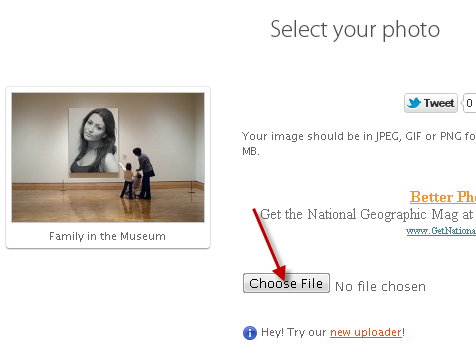

Photofunia is an online tool made for users to input their desired photos into various frames and already made optional pictures and then provide them in a single convenient view. In this way, we can add amazing photo effects online using Photofunia. However, you would confused by reading this small description of this online tool. So, let us review this tool's usage in a detailed manner.
How to use Photofunia to Add Amazing Photo Effects Online:-
- Go to Photofunia website.
- Now you will be shown up with various frames and images in a small form. Click on any of the image/frame of your choice. Here I have selected family in the museum and I am going to show a tutorial with this frame. You can select any frame you like.

- Now you need to choose your file you want to display in the image and would like add the effect in the image. Click on Choose file and upload the image from your computer.
- After uploading your image from the computer, Click on GO or the image forming process will automatically begin.
- It will ask you to wait for some time. After some time, your photo will be ready to be downloaded and the effects will have been added to the image accordingly i.e. the your uploaded image will be integrated into the . Now you can grab that image by clicking on Save.
By the way, I had my own image and I tried it with this Photofunia and I would like to share it will all my friends. So, Just take a look at the image I created with Family in the museum frame.

So, Enjoy using this awesome Online tool i.e. Photofunia !
There are thousands of frames available for you to add effects and enjoy.
Hope you find Photofunia interesting!
Do share your views via comments on "Add Amazing Photo Effects Online Using Photofunia"!!!
Do share your views via comments on "Add Amazing Photo Effects Online Using Photofunia"!!!
Read More
5
Read More
Quick Thumbnail : Create Thumbnail of any Image Online
We always would like to take captures/screenshots or edit any pictures for our purpose but find it difficult to resize them. Even we do not know how to resize those images in a convenient way using any tool. This is where Quick Thumbnail comes to rescue. The headline of this Online tool Quick Thumbnail says "The Fastest way to Resize your Pictures and Images"!! This tool is really handy and comes in ease to use for users. By the way, you just need to upload your photos, make necessary changes in it . After making necessary changes i.e. resizing and making changes in the image and after that your resized images will be provided in a single convenient view!


We strongly recommend this tool for your resizing purposes as it comes with various handy features.

Features of Quick Thumbnail:

Features of Quick Thumbnail:
- Ease to use
- No Installation Required
- Available Online
- Resize your Images by Percentage
- Options available to Insert Images from your Computer or from a URL
- Resize your Images by available standard sizes like 480x60 , 1024x768,etc.
- Filter Images
- Watermark Images
- Totally free of cost
- and many more features
So, after reading all these awesome features about this useful online Image resizing utility.
Just take a look at the Resizing Window.
So, enjoy using this freebie online tool!
Hope you find my article useful!
Kindly do share your views via comments on "Quick Thumbnail : Create Thumbnail of any Image Online"!!!
Read More
0
Read More
Pixlr : Best Online Image Editor
Adobe Photoshop has always been an amazing product for all Image editing purposes. However, we need to edit photos many times to make it attractive or presentable. However, we are going to see a way to use Adobe Photoshop Software Online. Well, this online editor is similar to Photoshop and works really awesome.


Nowadays, Photoshop comes very costly but still we need it for editing purposes. This is where Pixlr Comes to rescue. Pixlr is an Online Image Editing Software. You just need upload your images and start editing them. Pixlr is very handy and easy to use tool. This comes with all the features that a Normal Adobe Photoshop has. If you wish to use any online Image editing Software, then go for Pixlr.
Need to Know how Pixlr Editor looks, See the Image below.
So, follow this link and wait for some time until the Editing Window fully appears.
Hope you enjoyed my article!
Do share your views via comments on "Pixlr : Best Online Image Editor"!!
Read More
0

Top 6 Sites to learn Foreign Languages Online:-


![]()

Hope you find this article useful!
Read More
6 Sites to Learn Foreign Languages Online
Well, Many people want to learn foreign languages. This really helps when you go abroad or meet people from different countries. If you also takes interest in learning these foreign languages, then I have created a list of Top 5 Sites to learn foreign Languages online to help you in future.
So, below is the list of various sites that teaches foreign languages online for free!!
So, below is the list of various sites that teaches foreign languages online for free!!

Top 6 Sites to learn Foreign Languages Online:-
(1) 12 Speak
(2) Busuu
(3) LangoLab
(4) LiveMocha

(5) Skritter

(6) Word2Word
So, Enjoy learning foreign Languages from these sites!
Hope you find this article useful!
Kindly share your views via comments on "6 Sites to Learn Foreign Languages Online"!!
Read More
