
8
 Read More
How to Download Facebook Albums Easily
We all are aware about an amazing feature or say Option provided by Facebook and it is Albums. But when we want to download these albums within a Single Click, then Facebook does not has a readily available option to do so because it happens many times that we want to download the full album of our friends but we do not have time top open every picture from that album and then it's quite difficult to open each photo manually and hit on the Download button. A few of people may know about a Firefox add-on named as Facepad but unfortunately it was removed by the Developer. So, I came across an useful application in which Downloading facebook Albums can be done easily and that too within few steps.
Also Read: List of all Facebook Tricks and Updates Made by Facebook in 2012


And that's all. Your Images will be downloaded in a ZIP file.
I personally used and analysed this tool and I can just say that this Online Application is just Awesome. So,from my side, Thumbs Up to this Application. Even It's totally free to use.
Hope you liked this Post,
Do share your views via comments on "How to Download Facebook Albums Easily"!!
Also Read: List of all Facebook Tricks and Updates Made by Facebook in 2012

How to Download Facebook Albums Easily
- Firstly Follow to this website - Facebook2Zip.com
- Now you need to click on Login with Facebook and Grant permissions to this website by Clicking on Allow.
- Now, choose your friend by Typing the name of your friend and Click Next.

- Now, it will display all the albums of your friend. Just Select the one wish to Download and Click on Download.

- Now it will take some time to grab all the Images in that album. Wait for some time and when it will be ready, Just hit Download.
And that's all. Your Images will be downloaded in a ZIP file.
I personally used and analysed this tool and I can just say that this Online Application is just Awesome. So,from my side, Thumbs Up to this Application. Even It's totally free to use.
Hope you liked this Post,
Do share your views via comments on "How to Download Facebook Albums Easily"!!
Read More
2
Read More
Official Seal Generator: Create Seals Online
We all know the importance of Branding a business with the help of various types of tools and techniques like for a website, A good theme,A perfect logo,etc as well as A branded seal for your business/website is really necessary to create an high impact & impression online. Though it has been too difficult to make logos manually via softwares or any kind of third-party tools. This is where Official Seal Generator Comes to rescue.


Official Seal Generator is an online tool as prescribes it is used to make seals. This tool is the best way to create custom and attractive seals online. The best part is that it is quite simple to generate a seal using this tool. Many popular websites have been using it's seals.
So, here you just need to select your seal's shape , Pick your color, Add text, etc. and tweak the post as you like and Hit GO button. When you are done creating your seal, just save it in your computer and use it accordingly.
So, that's all for this tool! If you haven't tried, then why not give a try?
Hope you liked this information!
Kindly do share your views via comments on "Official Seal Generator: Create Seals Online"!!
Read More
3
Read More
Add Amazing Photo Effects Online Using Photofunia
Hey guys.. What's up??? I am updating my blog after a long time as I was suffering from fever from the past few days. By the way, Let us come to the main topic, today I will be showing a really great and interesting site i.e. Photofunia. As the word sounds, we will have fun with photos and that too online. We earlier too shared some Online tools like Pixlr for editing purposes and Quick Thumbnail for creating thumbnails for pictures online. But this time it would really fantastic then earlier. Photofunia will help you to add amazing photo effects online and even you can show those photos to others and impress them.



Photofunia is an online tool made for users to input their desired photos into various frames and already made optional pictures and then provide them in a single convenient view. In this way, we can add amazing photo effects online using Photofunia. However, you would confused by reading this small description of this online tool. So, let us review this tool's usage in a detailed manner.
How to use Photofunia to Add Amazing Photo Effects Online:-
- Go to Photofunia website.
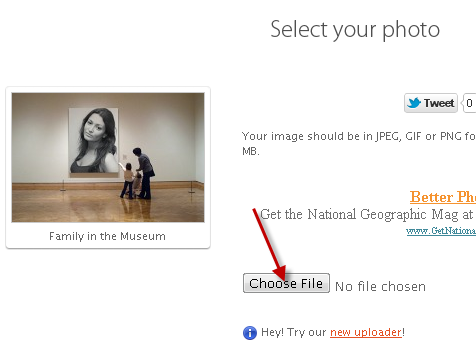
- Now you will be shown up with various frames and images in a small form. Click on any of the image/frame of your choice. Here I have selected family in the museum and I am going to show a tutorial with this frame. You can select any frame you like.

- Now you need to choose your file you want to display in the image and would like add the effect in the image. Click on Choose file and upload the image from your computer.
- After uploading your image from the computer, Click on GO or the image forming process will automatically begin.
- It will ask you to wait for some time. After some time, your photo will be ready to be downloaded and the effects will have been added to the image accordingly i.e. the your uploaded image will be integrated into the . Now you can grab that image by clicking on Save.
By the way, I had my own image and I tried it with this Photofunia and I would like to share it will all my friends. So, Just take a look at the image I created with Family in the museum frame.

So, Enjoy using this awesome Online tool i.e. Photofunia !
There are thousands of frames available for you to add effects and enjoy.
Hope you find Photofunia interesting!
Do share your views via comments on "Add Amazing Photo Effects Online Using Photofunia"!!!
Do share your views via comments on "Add Amazing Photo Effects Online Using Photofunia"!!!
Read More
5
Read More
Quick Thumbnail : Create Thumbnail of any Image Online
We always would like to take captures/screenshots or edit any pictures for our purpose but find it difficult to resize them. Even we do not know how to resize those images in a convenient way using any tool. This is where Quick Thumbnail comes to rescue. The headline of this Online tool Quick Thumbnail says "The Fastest way to Resize your Pictures and Images"!! This tool is really handy and comes in ease to use for users. By the way, you just need to upload your photos, make necessary changes in it . After making necessary changes i.e. resizing and making changes in the image and after that your resized images will be provided in a single convenient view!


We strongly recommend this tool for your resizing purposes as it comes with various handy features.

Features of Quick Thumbnail:

Features of Quick Thumbnail:
- Ease to use
- No Installation Required
- Available Online
- Resize your Images by Percentage
- Options available to Insert Images from your Computer or from a URL
- Resize your Images by available standard sizes like 480x60 , 1024x768,etc.
- Filter Images
- Watermark Images
- Totally free of cost
- and many more features
So, after reading all these awesome features about this useful online Image resizing utility.
Just take a look at the Resizing Window.
So, enjoy using this freebie online tool!
Hope you find my article useful!
Kindly do share your views via comments on "Quick Thumbnail : Create Thumbnail of any Image Online"!!!
Read More
1
Read More
LetterMeLater: Awesome Tool to Schedule Mails Easily
Scheduling mails for future posting has been a great need nowadays as most Services do not provide an option to schedule mails for future sending but now we can do it easily using an online services known as LetterMeLater. The name of this online tool itself prescribes its work. However, I used it and found it really Good to use. Well, LetterMeLater is an online service to schedule your mails for future posting. As our Accounts like Gmail and Yahoo do not provide this option by default, we can use this third party online tool to schedule mails.


Hope you find my article useful!
Kindly share your views via comments on "LetterMeLater: Awesome Tool to Schedule Mails Easily"!!
How to Schedule Mails using LetterMeLater:-
LetterMeLater is the best utility to perform the task of scheduling mails easily because it provides many user friendly options like adding attachments, Contacts and Mailing Lists,etc. So, whenever you might cannot get in touch with Internet or out for vacations, you can use this service to schedule Mails. So, let us see how we can do this.
- Follow this website - LetterMeLater
- You will be shown up with the registration page. Fill the details and Click on Create Account.
- Now verify your account by opening it and clicking on the confirmation link sent my LetterMeLater. After clicking, your account will be activated.
- You will be shown your account Page. Click on Compose button to send a new mail present at the top right corner.
- Now you will be shown a page where you can compose your mail. In the To field, enter the mail to which you would like to send mails. Enter the Subject if needed. Now you will be seeing something in the form of Calendar Icon. Click on it to schedule your Mail Accordingly. Click on the Calendar Icon and choose the date and time you would like to schedule your mail.
- Finally click on Schedule Mail to be Sent!
That's all! Your mail would be sent to the respective recipient at the scheduled time!
Enjoy! Now you can schedule mails easily!!
Enjoy! Now you can schedule mails easily!!
Hope you find my article useful!
Kindly share your views via comments on "LetterMeLater: Awesome Tool to Schedule Mails Easily"!!
Read More
0
Read More
Pixlr : Best Online Image Editor
Adobe Photoshop has always been an amazing product for all Image editing purposes. However, we need to edit photos many times to make it attractive or presentable. However, we are going to see a way to use Adobe Photoshop Software Online. Well, this online editor is similar to Photoshop and works really awesome.


Nowadays, Photoshop comes very costly but still we need it for editing purposes. This is where Pixlr Comes to rescue. Pixlr is an Online Image Editing Software. You just need upload your images and start editing them. Pixlr is very handy and easy to use tool. This comes with all the features that a Normal Adobe Photoshop has. If you wish to use any online Image editing Software, then go for Pixlr.
Need to Know how Pixlr Editor looks, See the Image below.
So, follow this link and wait for some time until the Editing Window fully appears.
Hope you enjoyed my article!
Do share your views via comments on "Pixlr : Best Online Image Editor"!!
Read More
9
Read More
How to Convert Any Blog to an Ebook to Read Offline
You might have many favorite blogs like CoolTricks.in which you would like to read offline. However, Sometimes you find a Blog very useful which contains very informative articles or any sort of useful information and you want to see whole blog's content. But it's like navigating through pages takes lot of time. OR Sometimes you need that information to use offline. Now we have an awesome way to access that blog's content offline that means without getting in touch with the Internet by downloading the blog posts in the form of a PDF file and Read it Offline and enjoy it's useful information.As this tool helps to Convert any Blog to an Ebook to Read Offline. So, Download it in a PDF form and read it anytime you want. Nowadays there are various phones too that support PDF files.


How to Convert Any Blog to an Ebook to Read Offline
There are many tools or websites that may offer you to do so but most of them are weird, do not work properly or we need to pay for them. Book Smith is an Online tool which converts any blog to PDF form within minutes. We personally used & analysed this free & easy to use Online tool and found it really Useful.
Steps to Convert Any Blog to An Ebook to Read Offline
- Go to Book Smith Website.
- It will show you it's Welcome Page. Click on Start Now if you want to start this process.

- In the first field, Enter the URL of the website which you would like to download in the form of PDF file. After that choose on which blogging Platform that site is built on (Wordpress or Blogger). Now you have to select the Number of Posts you would like to Download. You can either choose the posts via Latest or Date Range.
Finally Click on Get The Posts.
- After that, it will show you the number of available posts in that site. You can even uncheck the posts you do not want to include in your PDF file. Click on Continue.

- Now you will be redirected to a page where you can customize your Ebook According to your choice. You can even remove images or post dates from the Ebook. You can even add titles, sub-titles or Choose Sub-cover. Click on Create my Book.
- Now it will start creating your Ebook. It will take some time depending upon the size and the number of posts you have chosen in your Ebook.
- After some time, your book will be ready to be downloaded. Click on Download Ebook to start downloading.

- So, your Ebook will start downloading. Enjoy!!
Remember: This online Book Smith fetches post from the feed of the blog. If the blog owner has enabled partial posts in their feed, then you will be able to see only the post snippet in the downloaded PDF file. If the blog's owner has enabled complete posts in their feed, then you will able be able to view complete post in your downloaded PDF file. If you are the owner of the blog, then you can fetch complete post by providing the Wordpress or Blogger Login Details.
So, hope you find this article informative!
Kindly share your views via comments on "How to Convert Any Blog to an Ebook to Read Offline"!!
Kindly share your views via comments on "How to Convert Any Blog to an Ebook to Read Offline"!!
Read More
1
Read More
How To Convert PDF to PowerPoint Online Free
As the post title says, We are going to see How To Convert PDF to PowerPoint Online Free! Well, this might be quite helpful for you. We are going to use an online tool for doing so. This online tool is known as Convert PDF to Powerpoint. So, this online tool is really helpful for you if you are seeking some matter or presentation on the Internet and came across a Wonderful PDF file, So you can use this tool to Convert PDF to Powerpoint Online for free. After converting,you can use that PPT (Powerpoint) file for your use. Or can show in a form of a presentation.
How To Convert PDF to PowerPoint Online Free

If earlier you have been looking for such type of converter, then you search ends here. We highly recommend this tool because most such converters are trial versions or contain weird errors when you use them. Convert PDF to Powerpoint is an online free PDF to Powerpoint Converter which provides you to convert you to do this work easily and without any software. So, Convert like 123 and Go.
Steps To Convert PDF to PowerPoint Online Free

So, That's all! You will receive Download link in a form of mail within 2 minutes. So, Download that PPT file from the download link and Use it.
So, This tool was quite helpful! Wasn't it??
Kindly share your views via comments on "How To Convert PDF to PowerPoint Online Free"!
How To Convert PDF to PowerPoint Online Free
If earlier you have been looking for such type of converter, then you search ends here. We highly recommend this tool because most such converters are trial versions or contain weird errors when you use them. Convert PDF to Powerpoint is an online free PDF to Powerpoint Converter which provides you to convert you to do this work easily and without any software. So, Convert like 123 and Go.
Steps To Convert PDF to PowerPoint Online Free
- Firstly Go to Convert PDF to Powerpoint.
- Click on Browse and Upload your Desired PDF file.

- Enter your Email Address and Click on Send.

So, That's all! You will receive Download link in a form of mail within 2 minutes. So, Download that PPT file from the download link and Use it.
So, This tool was quite helpful! Wasn't it??
Kindly share your views via comments on "How To Convert PDF to PowerPoint Online Free"!
Read More
0
 Have you ever had a time when you had to send some really highly Confidential Emails and want to make sure that no one can even know about it??? Well, there is an Online tool known as Lockbin. LOCKBIN's logo itself is Free Online Email Encryption. Well, this service is useful when you want to send some really highly confidential data like credit card Pin Codes,Bank Data,etc. Well, Some hackers may get all your data if they break into that account and they an steal such personal Information. So, This is a time when Lockbin comes to rescue. So, Send Password Protected mails and why take a risk of leaving such confidential information free!!
How to Send Password protected Email Messages:-


Read More
How to Send Password Protected Email Messages
Have you ever had a time when you had to send some really highly Confidential Emails and want to make sure that no one can even know about it??? Well, there is an Online tool known as Lockbin. LOCKBIN's logo itself is Free Online Email Encryption. Well, this service is useful when you want to send some really highly confidential data like credit card Pin Codes,Bank Data,etc. Well, Some hackers may get all your data if they break into that account and they an steal such personal Information. So, This is a time when Lockbin comes to rescue. So, Send Password Protected mails and why take a risk of leaving such confidential information free!!How to Send Password protected Email Messages:-
- Follow this link - This will take you to the lockbin Service's Page.
- You will see a form. You have to fill all the details. For instance, you can see the image below. Give your Mail a desired Password and remember it. In the form, it has an option to attach file and in the text field, enter your message.After filling all the details, Click on Submit.
- Now your password protected mail has been sent to the recipient.
(Well, the recipient will receive a mail in which he will only we provided the information about the sender and a link will be provided to him.)
- If the recipient click clicks on the link, he will be prompted to enter the password. If he is not able to give the correct password, he could not read the mail.
- So, After entering the Secret Key, the recipient could open the mail and read the Message.
So, Now you can send any kind of highly confidential mails without any sort of fear. But, the recipient should know the password of the mail. So,you can get tell him the password by any means or phoning/messaging him.
Hope you find my article useful!
Kindly share your views via comments on "Send Password Protected Email Messages"!!
Read More
0

Top 6 Sites to learn Foreign Languages Online:-


![]()

Hope you find this article useful!
Read More
6 Sites to Learn Foreign Languages Online
Well, Many people want to learn foreign languages. This really helps when you go abroad or meet people from different countries. If you also takes interest in learning these foreign languages, then I have created a list of Top 5 Sites to learn foreign Languages online to help you in future.
So, below is the list of various sites that teaches foreign languages online for free!!
So, below is the list of various sites that teaches foreign languages online for free!!

Top 6 Sites to learn Foreign Languages Online:-
(1) 12 Speak
(2) Busuu
(3) LangoLab
(4) LiveMocha

(5) Skritter

(6) Word2Word
So, Enjoy learning foreign Languages from these sites!
Hope you find this article useful!
Kindly share your views via comments on "6 Sites to Learn Foreign Languages Online"!!
Read More
3

Well, Have you ever thought that you can make a fake call???? Well, there is an online tool to do so known as Crazy Call to perform Caller ID Spoofing. Well, this online tool can Help you to call from any number to any number at affordable prices. Many websites may offer to do so but most of them are non-working and rest of them charges very high. This is 100% working and will help you to Spoof Caller ID. Well, In this trick, you can easily hide your number and call from any number of your choice without getting caught. So, Prank with your friends and amaze them or take revenge from your enemies.
Also Read: How to Send Fake SMS
Caller ID Spoofing is a way to call to a recipient's number while displaying a number which is not of its actual destination without showing your identity. So, Make a fake call easily without getting caught.
Note: Well,this service charges a bit high as It will be applying International Call rates. Make sure that you maintain High Balance before using this service.
Trick to make Fake Calls


Read More
Trick to Make Fake Calls | Caller ID Spoofing
Also Read: How to Send Fake SMS
Caller ID Spoofing is a way to call to a recipient's number while displaying a number which is not of its actual destination without showing your identity. So, Make a fake call easily without getting caught.
Note: Well,this service charges a bit high as It will be applying International Call rates. Make sure that you maintain High Balance before using this service.
Trick to make Fake Calls
- Firstly go to this site- Crazycall
- Select your country.
- In the first field, Enter the number that you want to display.In the second field, Enter the number of the recipient.In the third column, you can even change the quality of your voice.
- After filling all the columns, Click on Get me a Code.
- After you click on Get me a Code, A new box will appear at the right side of your window saying the number you have to dial and it will show a code.
- So call on the given number and enter the code when asked.
- That's all!! Now your call will be connected to the recipient with a Fake Caller ID.
So, It is a working method.
It will cost high,,, So use it only when you really need it.
Do not forget to maintain a good balance as it costs high.
So, Hope you find my article useful!!
Kindly share your views via comments on "Trick to Make Fake Calls | Caller ID Spoofing"!!
It will cost high,,, So use it only when you really need it.
Do not forget to maintain a good balance as it costs high.
So, Hope you find my article useful!!
Kindly share your views via comments on "Trick to Make Fake Calls | Caller ID Spoofing"!!
Read More
0

Searching files on a particular File Sharing Server like Megaupload,Mediafire, or any other file hosting site can be a difficult task. Well, Now it's an easy job with an online tool known as Files Tube. Files Tube helps to search any file within a particular web hosting site. So, you just need to grab the name of the software,game,movie or anything and most probably you will get your file. The best part of this site is that it has an option with which you can search within a particular web hosting site like Mediafire, Megaupload,etc.
So, Here I will be showing tutorial to search Winrar on Mediafire.
How to Search Files on Any File sharing Server:


So, I hope you find my article useful!!!
Kindly share your views via comments on "How to Search Files on Any File sharing Server"!!
Read More
How to Search Files on Any File Sharing Server

Searching files on a particular File Sharing Server like Megaupload,Mediafire, or any other file hosting site can be a difficult task. Well, Now it's an easy job with an online tool known as Files Tube. Files Tube helps to search any file within a particular web hosting site. So, you just need to grab the name of the software,game,movie or anything and most probably you will get your file. The best part of this site is that it has an option with which you can search within a particular web hosting site like Mediafire, Megaupload,etc.
So, Here I will be showing tutorial to search Winrar on Mediafire.
How to Search Files on Any File sharing Server:
- Go to www.filestube.com.
- Enter the name of the file you want and Click on Search. (Here I am Inserting Winrar)
- Now click on More button present at the left side.
- Now all the Web Hosting Sites will be displayed. Now Select the Web Hosting Site in which you want to search that particular file.Here I have selected Mediafire.comSo, All the results will be displayed on Mediafire.
- Click on the most appropriate link.
- Now finally Click on Download.
- Enjoy!!!
So, I hope you find my article useful!!!
Kindly share your views via comments on "How to Search Files on Any File sharing Server"!!
Read More
2
 Scheduling mails for future posting is a great requirement nowadays as sometimes we may be too busy to send mails or may be going outside. Sending mails in future is quite easy with an online site that is Futureme.org . Futureme.org is an awesome website which helps to Schedule our mails for future posting. It is easy to use. There are no problems in sending mails.

Instructions:-
It is easy to use!!
So, I hope my article was useful to you!!
Please do comments on this post!!!
keep Visiting!!!
Like us on Facebook.
Share our posts with your friends!!!
Read More
Schedule your Emails for future Posting

- Go to Futureme.org
- And click on sign up button present at top right corner of the site.
- Fill the details and complete the sign up process.
- After that, you will be logged into your account.
- Click on write a letter to the future.
- Enter the required message,subject,recipient's mail,etc.
- Schedule the date on which you want to send the mail.
- And click on Send to the Future.
- You're done!! Enjoy!!
It is easy to use!!
So, I hope my article was useful to you!!
Please do comments on this post!!!
keep Visiting!!!
Like us on Facebook.
Share our posts with your friends!!!
Read More
